Help CenterE6 Connect: Instructions and Troubleshooting
Activate ChipIn Shot Tracker as Tracking System in E6 App
Last updated October 13, 2026
Once you have purchased your E6 GolfTrak Special license you will need to activate it in your E6 App so you can use it as the tracking system to send data to E6 during your game.
Follow these steps to reset or initially activate your E6 subscription:
For New E6 Users Only
You will need to reset your password and download the E6 Connect app.
For Existing E6 Users Only
Each device can only connect to one E6 license at a time.
Step 1: Log In to E6 Connect on your device
- Open the E6 Connect app on your device.
- Log in using your E6 Connect email address and password
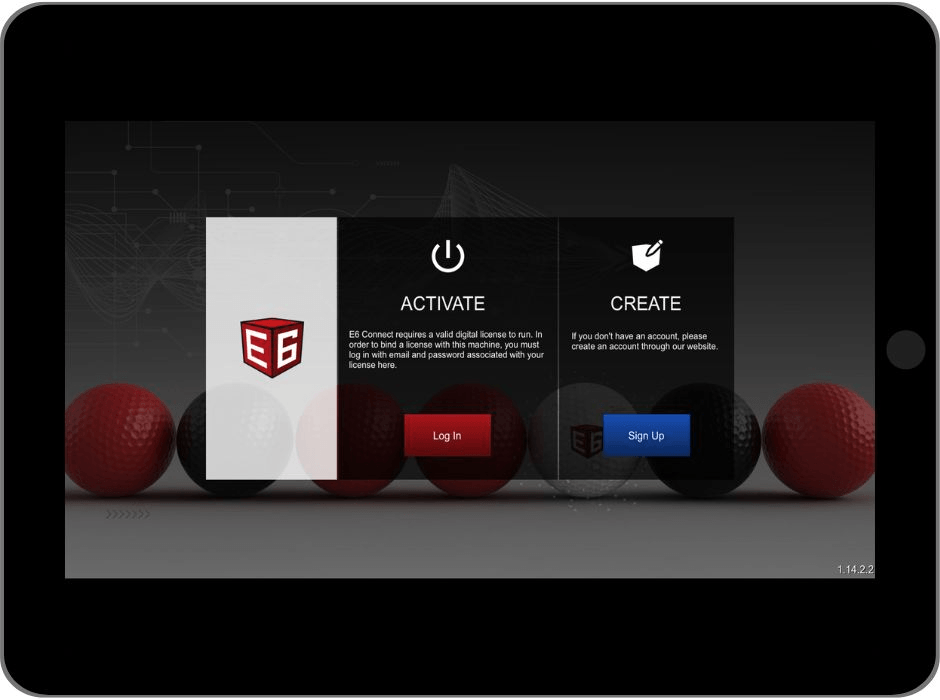
Step 2: Select Your License
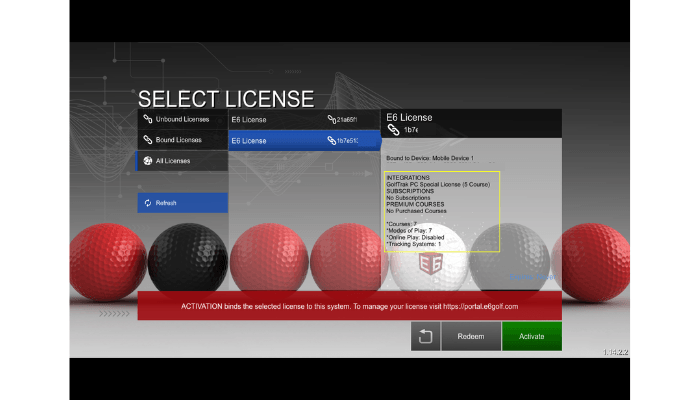
- Once logged in, you will see the available licenses that can be bound to your account.
- On the Select License screen, choose 'All Licenses'
- Find the license ID titled 'GolfTrak PC Special License (5-Course)' and select it.
- Tap the 'Activate' button to confirm
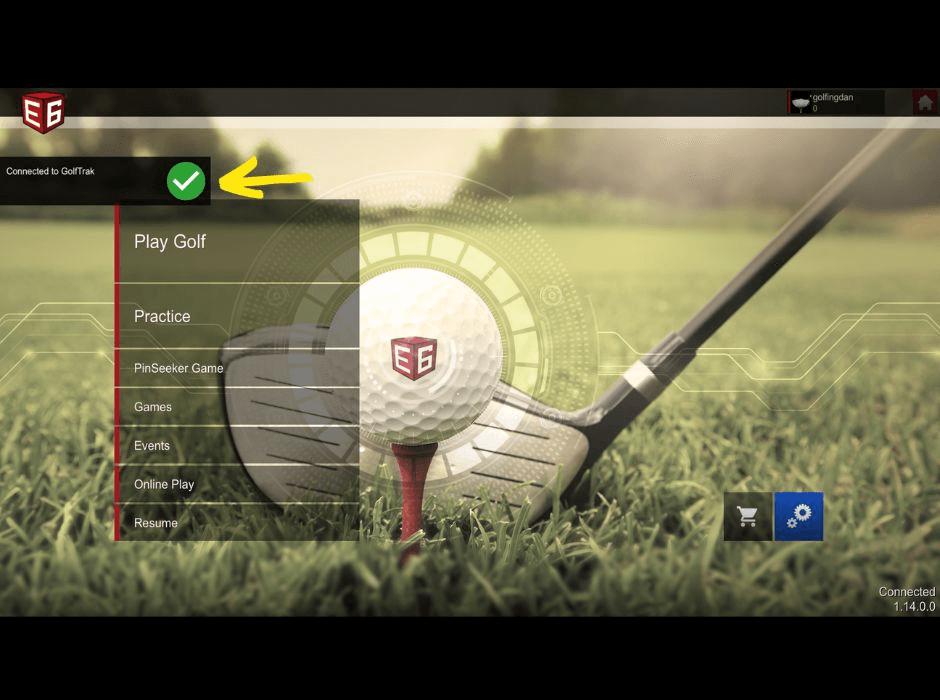
Once confirmed, you should receive the Connected to GolfTrak alert confirmation. You can now go ahead and set up a match in E6 so ChipIn Shot Tracker can confirm the connection in the app.