Help CenterE6 Connect: Instructions and Troubleshooting
Check ChipIn Shot Tracker connection in E6 Connect
Last updated October 13, 2026
To confirm you have connected GolfTrak as your simulator in E6 Connect you will require an internet connection on your E6 Connect device.
Once you have a solid network connection, follow these steps:
1. Navigate to Simulator Settings
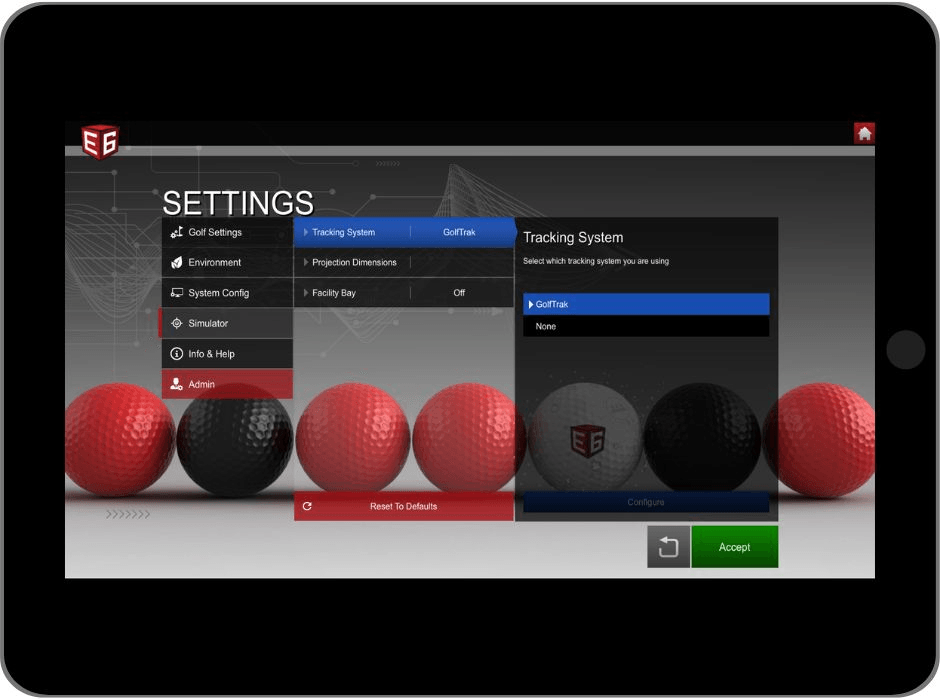
- Under the settings options in E6 Connect, navigate to the Simulator section
- Under the Tracking System section, confirm which system has been chosen
- You can test the connection by selecting a different system or None and tapping Accept, then choosing GolfTrak again and tapping Accept
2. Check the Connection Status
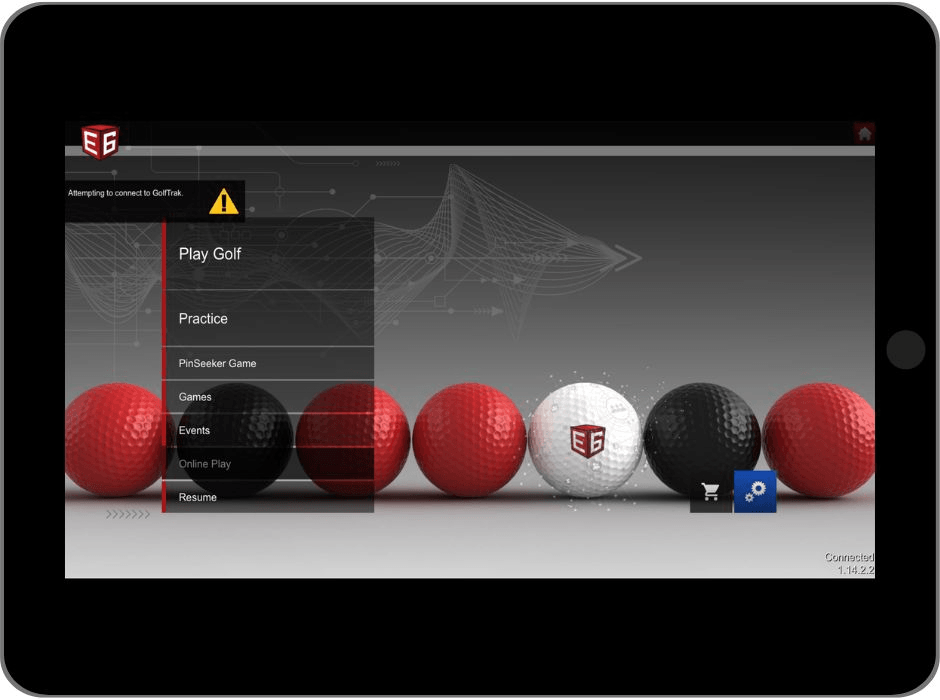
After following the steps in Step 1 or after logging back into E6, check that E6 is attempting to connect to GolfTrak.
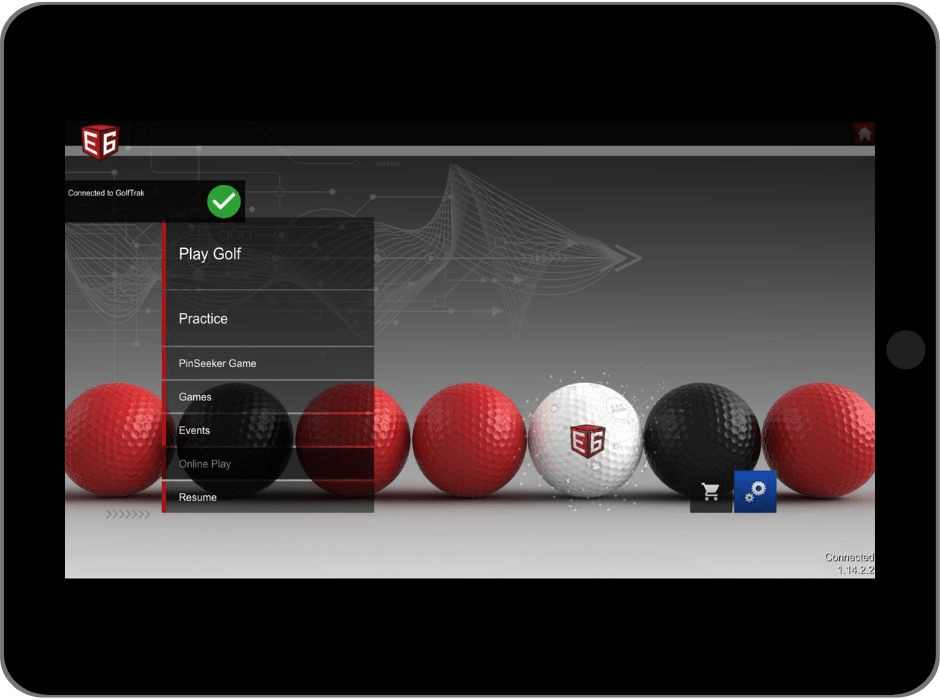
Look for the Connected to GolfTrak confirmation alert.