Help CenterE6 Connect: Instructions and Troubleshooting
Setting up a new game in E6 Connect
Last updated October 13, 2026
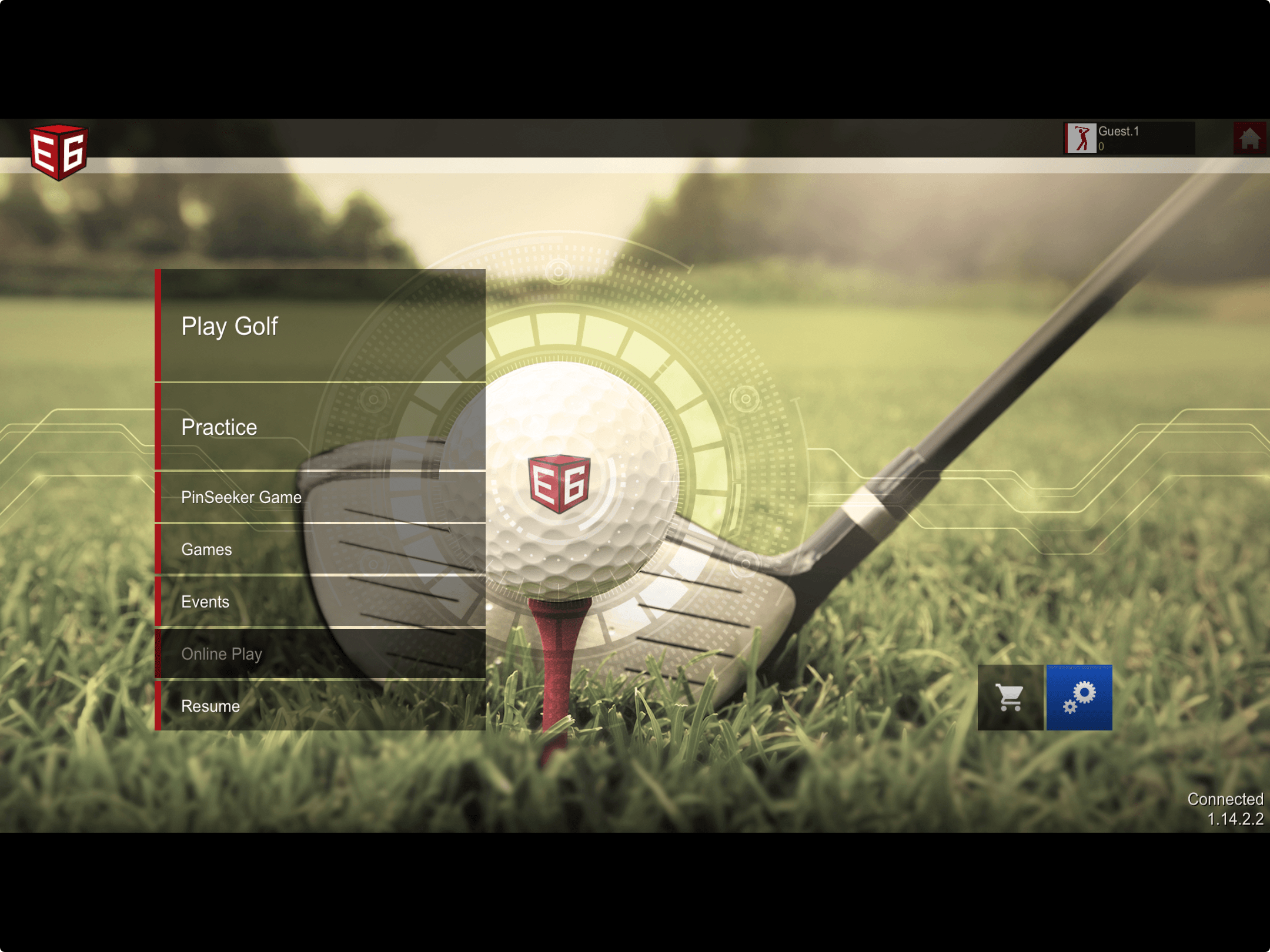
Choose your E6 Game Mode
As part of the E6 Connect GolfTrak 5-Course Special license, you have access to the following game modes:
- Play Mode at up to 5 courses: Aviara Golf Club, Bandon Dunes Golf Resort, Sanctuary Golf Course, Stone Canyon Golf Club, and Wade Hampton Golf Course
- Practice Mode on the E6 Driving Range or Short Game areas
- Game Mode, ideal for multiple players in a range of challenges such as Closest to the Pin, Long Drive, and Long Drive World Challenge
- Event Mode against other players
- PinSeeker Game, where you can compete to win real cash for closest to the pin tournaments. Find out more about PinSeeker here.
Online Game mode is not available as part of the GolfTrak 5-Course license.
Setting up a new game mode in E6
To ensure ChipIn Shot Tracker is able to connect to E6 and send shot data to the game, follow these steps:
Step 1: Check network status
- Your device needs to be connected to the internet to be able to send and receive data from ChipIn Shot Tracker. Ensure your device has a strong and stable network connection.
Step 2: Check the simulator connection
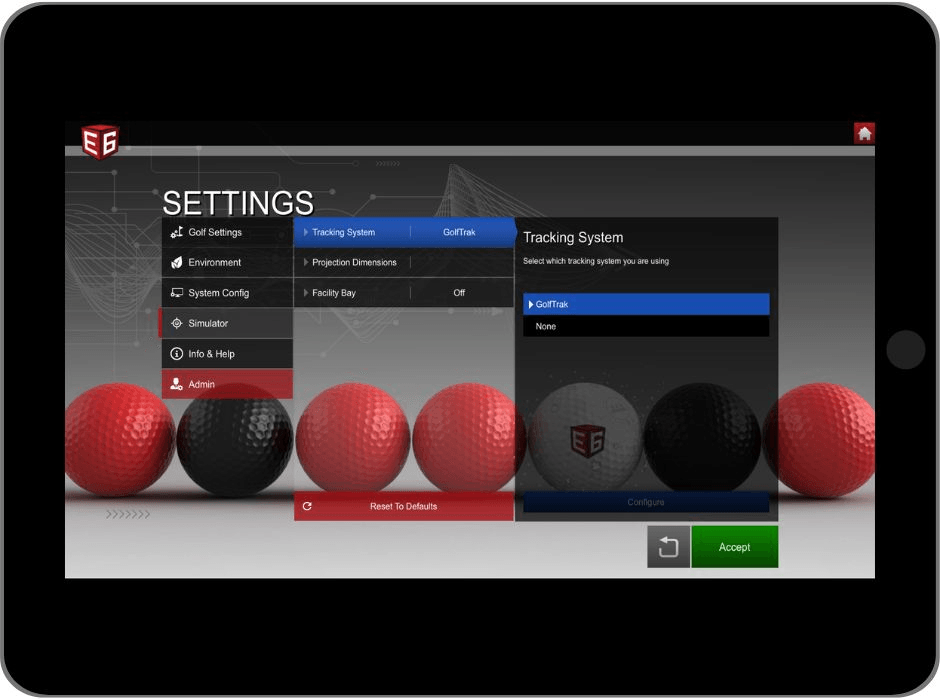
- Ensure you have chosen GolfTrak as your simulator in E6. Navigate to Settings > Simulator > Tracking System and choose GolfTrak as your simulator
Step 3: Choose game mode
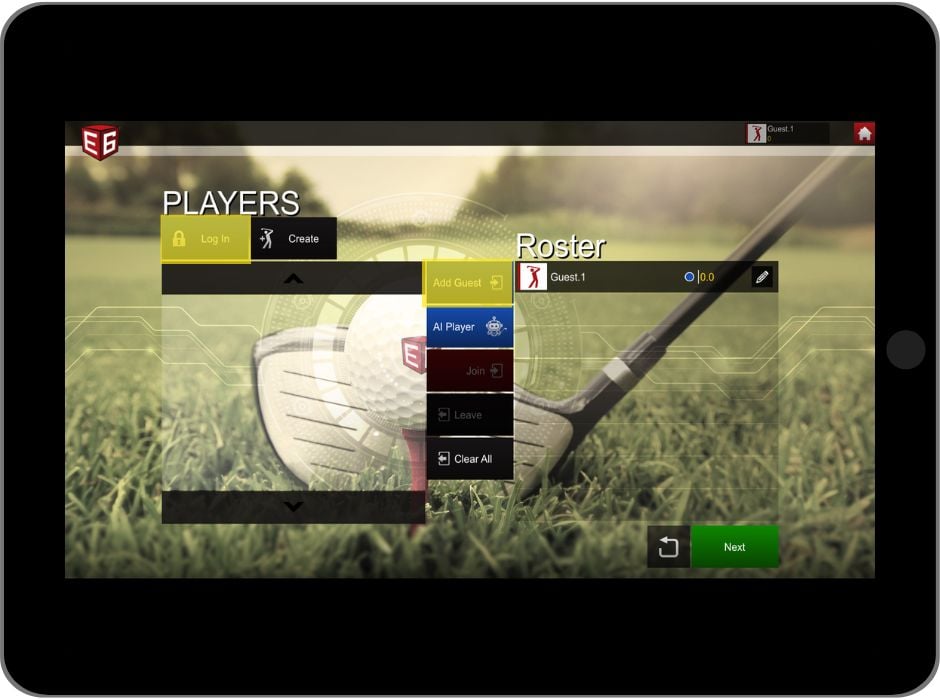
- Choose from the available game modes in E6 Connect
- You may play as a 'Guest' in E6 and ChipIn Shot Tracker will still be able to send and receive shot data. Alternatively, you can choose to login to record your game on your E6 Connect profile.
Step 4: Load game
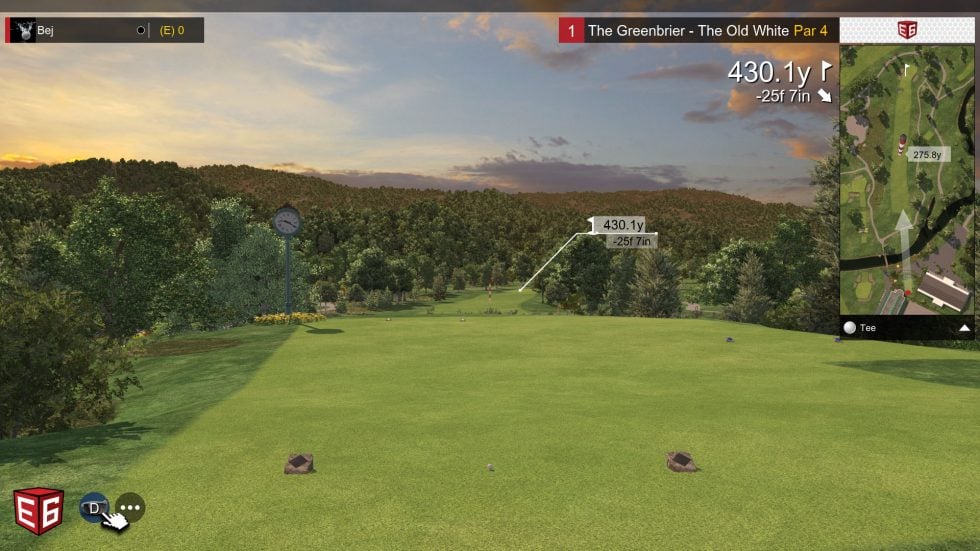
- Once you have chosen your game mode, wait for the E6 game display to appear
Step 5: Test the connection
- Once you have followed the steps above, attempt to connect to E6 in the ChipIn Shot Tracker app