Help CenterGSPro: Instructions and Troubleshooting
Finding and entering the correct ID in GSPro
Last updated October 13, 2026
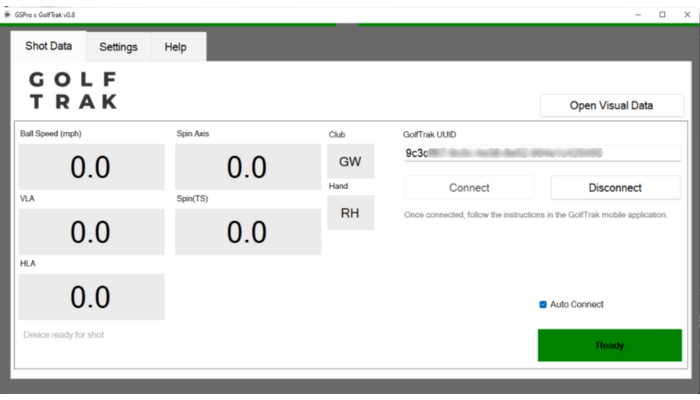
To connect ChipIn Shot Tracker to GSPro, you must enter your unique ID into the GSPro connector.
- You must have a GolfTrak license type with GSPro to enter your UUID.
- Find out how to purchase or convert an existing license here.
When you first purchase a ChipIn Shot Tracker PRO subscription, a unique ID for your profile will be activated in the app and emailed to the email you use to sign in to ChipIn Shot Tracker.
Find your unique GSPro ID
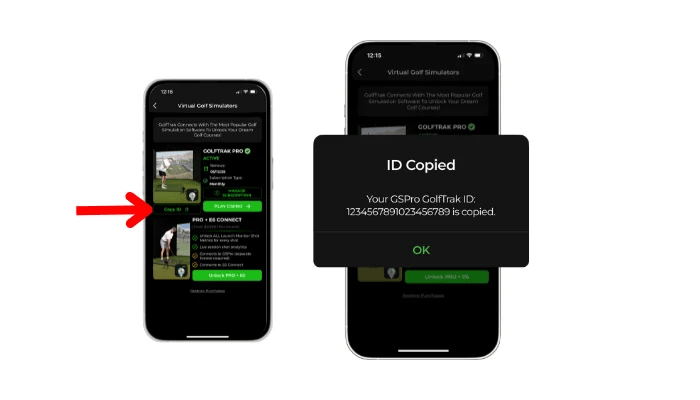
To access your unique ID:
- Go to the ‘Simulators’ section of the ChipIn Shot Tracker app
- Tap the ‘Copy ID’ button to copy your unique ID to your phone’s clipboard
Enter your unique ID in the GSPro connector
When you first open GSPro, a separate connector window will appear.
Enter your unique ChipIn Shot Tracker UUID in the window.
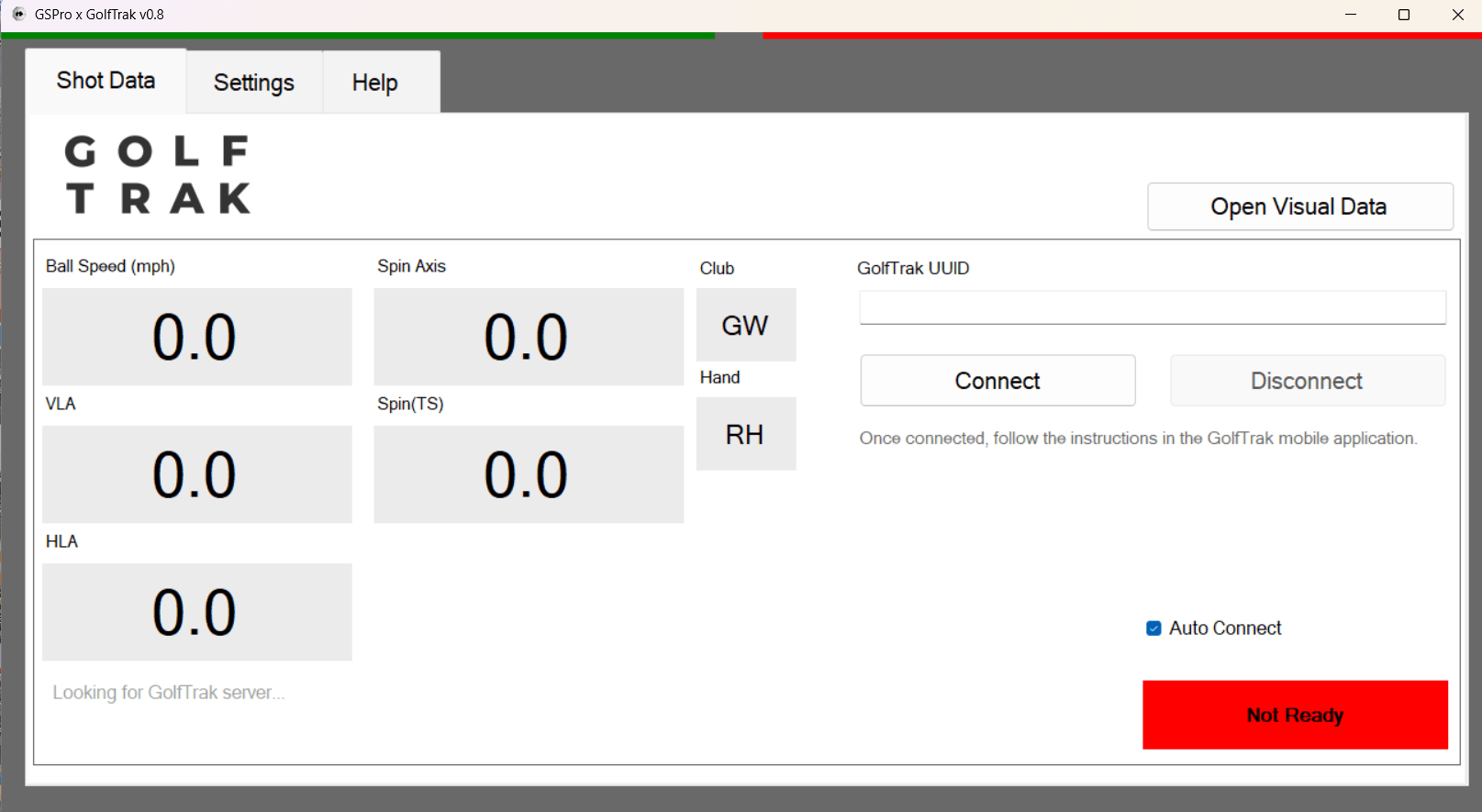
GSPro will attempt to connect to GSPro and will return a positive connection status when it is connected correctly.