Help CenterGSPro: Instructions and Troubleshooting
How to connect to GSPro
Last updated October 13, 2026
To connect ChipIn Shot Tracker to GSPro you will need:
- An active GSPro GolfTrak license type that can connect to the ChipIn Shot Tracker app.
- Purchase a new GSPro GolfTrak license here (select GolfTrak from the dropdown options)
- Existing GSPro users can convert their license by following these steps.
- ChipIn Shot Tracker installed and updated on your device
- Install the latest version here
- An active ChipIn Shot Tracker PRO subscription, purchased via the ChipIn Shot Tracker app
Step 1: Open GSPro and enter your unique ChipIn Shot Tracker ID
When you first purchase a ChipIn Shot Tracker PRO subscription, a unique ID for your profile will be activated in the app and emailed to the email you use to sign-in to ChipIn Shot Tracker.
To access your unique ID,
- Go to the ‘Simulators’ section of the ChipIn Shot Tracker app
- Tap the ‘Copy ID’ button to copy your unique ID to your phone’s clipboard
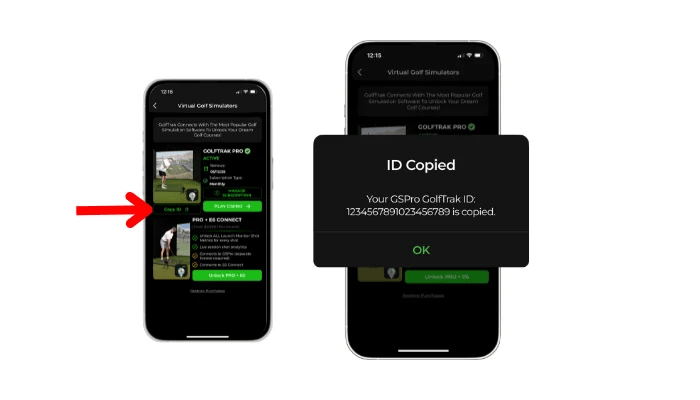
Step 2: Enter your unique ID in the GSPro connector
When you first open GSPro, a separate connector window will appear.
Enter your unique ChipIn Shot Tracker UUID in the window.
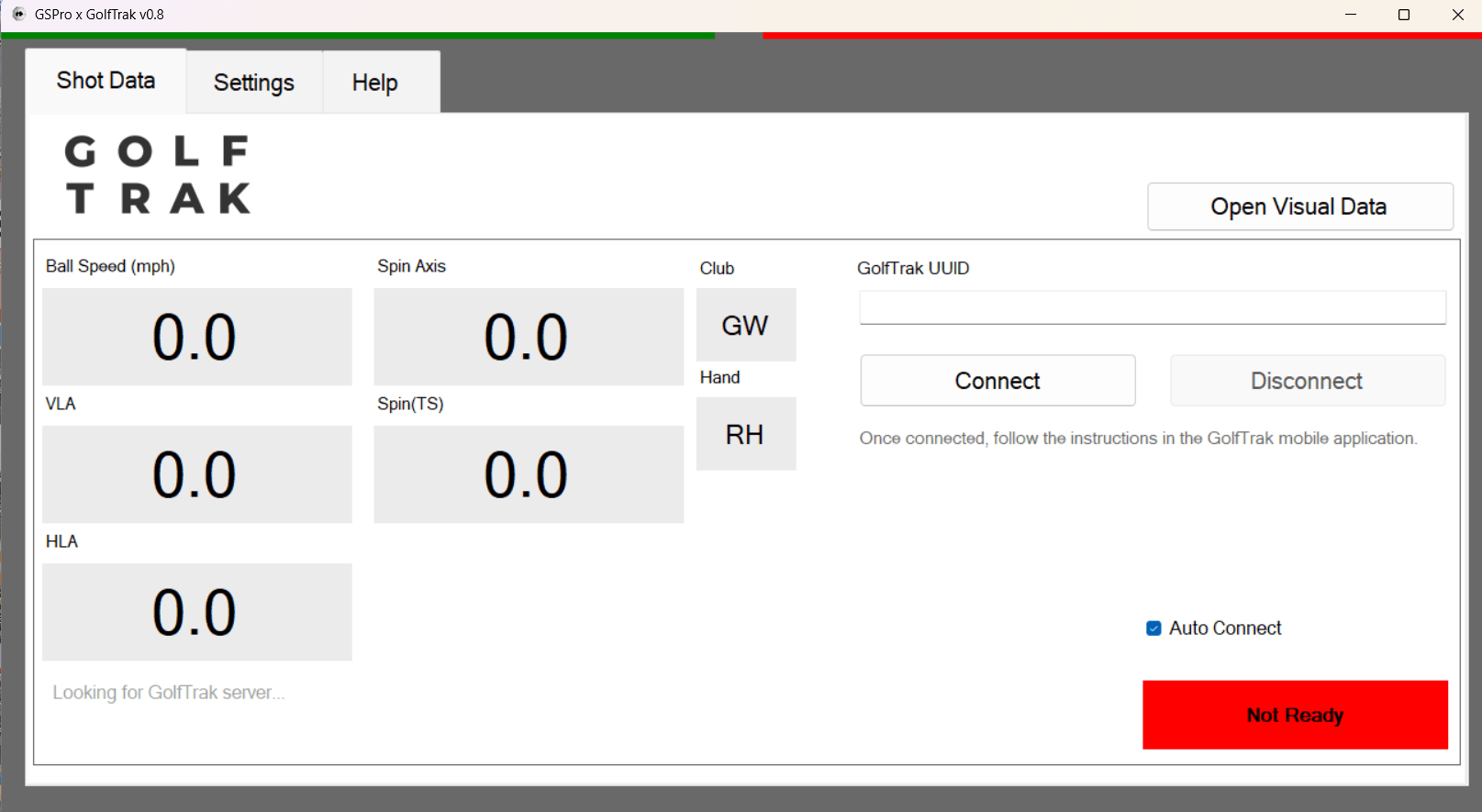
GSPro will attempt to connect to GSPro and will return a positive connection status when it is connected correctly.
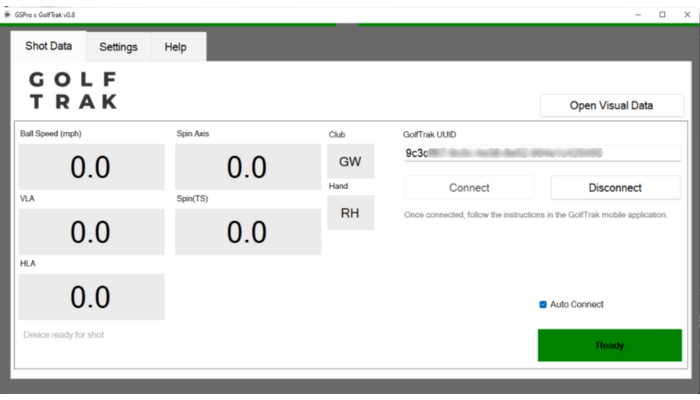
Step 3: Set Up Your Game in GSPro
In order to confirm the connection you need to have an active game setup and ready to play in GSPro.
To complete this:
- On the main screen of GSPro, you'll find options to select your game type.
- Choose the type of game you want to play, such as practice range, course play, or a skills challenge.
Step 4: Select GSPro Connection in the ChipIn Shot Tracker App
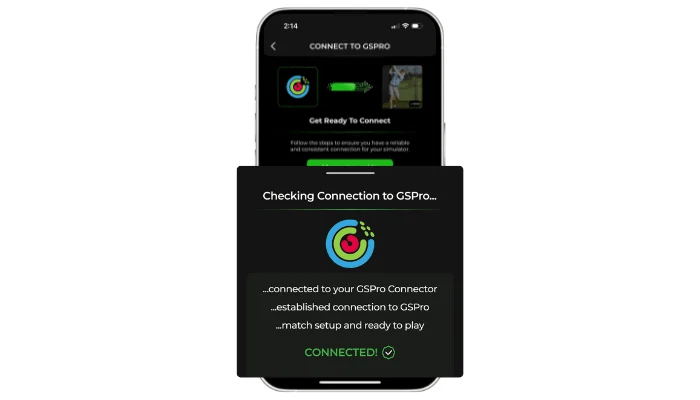
Head to the ‘Simulators’ section of the ChipIn Shot Tracker app and select ‘PLAY GSPRO’ to verify the connection.
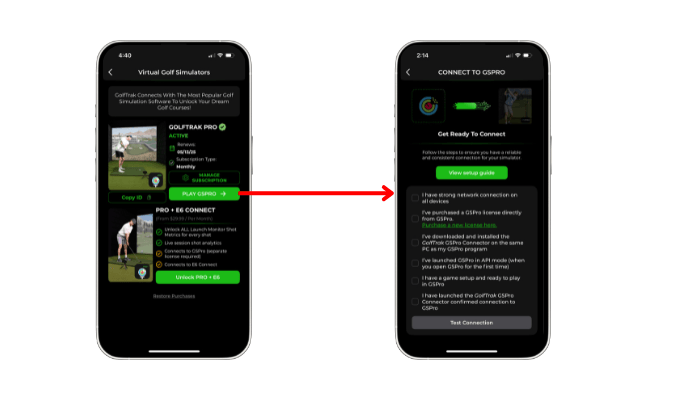
Confirm you have followed all the steps required and then press ‘Test Connection’.
ChipIn Shot Tracker will then confirm it has established a connection to GSPro and you are ready to setup ChipIn Shot Tracker and play!
Once you have followed all the steps above, complete the shot setup steps in ChipIn Shot Tracker. Take a swing and watch as your shot data is captured by ChipIn Shot Tracker, transmitted to GSPro, and beautifully rendered on-screen. Enjoy the realistic golf simulation experience, whether you're practising your swing or competing with friends!